If you’ve been scrolling Instagram lately, you’ve probably noticed those super short, aesthetic daily mini vlogs that are getting millions of views. They look really smooth, the music hits just right, and somehow they make even simple everyday moments look cinematic. The best part? You don’t need a fancy camera or professional editing skills to create them.
In this article, I’m going to break down exactly how you can make these trending daily mini vlogs using CapCut — both manually and with ready-to-use templates. Whether you’re a complete beginner or someone who just wants a faster workflow, this guide has got you covered.
Why Are Daily Mini Vlogs Trending Right Now?
Mini vlogs have exploded in popularity for a few simple reasons, and once you understand them, you can use the same formula for your own content.
The biggest reason is the music. Most of these viral mini vlogs use a catchy Bhojpuri or trending audio track that immediately grabs attention. The beat-synced cuts make viewers feel like they can’t stop watching, and before they know it, they’ve watched the video three or four times — which is amazing for your reach.
The second reason is the length. These reels are usually only 12 to 15 seconds long. That’s short enough that people don’t swipe away, but long enough to show a proper glimpse of someone’s day. Short videos also tend to get rewatched more, and Instagram’s algorithm loves that.
Finally, the content itself feels real. These videos show actual daily life — morning routines, local markets, village scenes, chai breaks, work moments. People relate to that kind of content far more than overly polished promotional stuff. Around 15 to 20 short clips stitched together with smooth transitions gives it that satisfying, fast-paced flow.
If you live in a village, film your surroundings, the fields, local streets, daily chores — it all works beautifully. City dwellers can capture cafes, roads, their workspace, anything that shows a slice of their day.
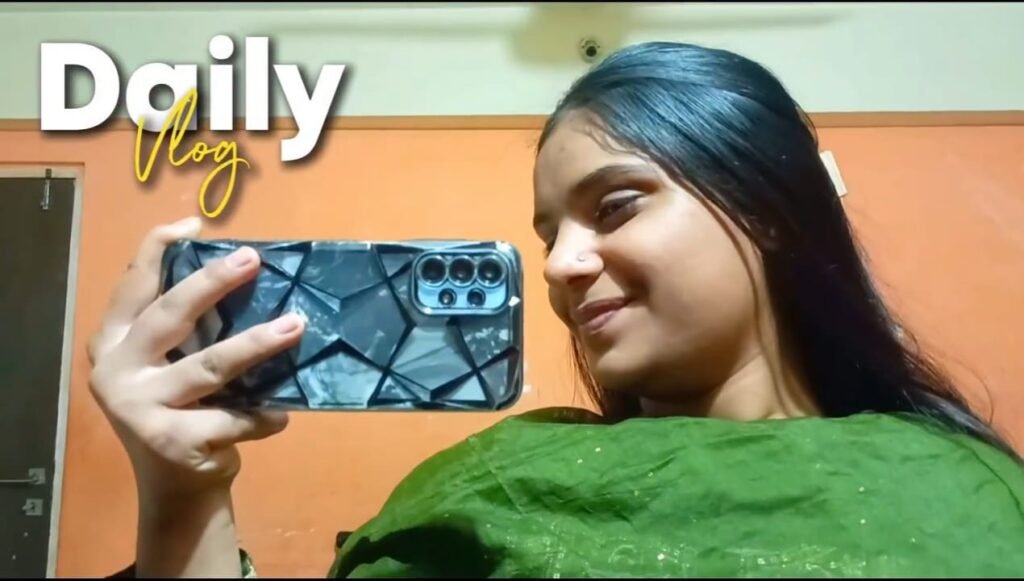
How to Edit a Daily Mini Vlog Manually on CapCut
Manual editing gives you full control over your video. Here’s a simple step-by-step process to follow:
Step 1 — Gather your clips. Record at least 15 to 20 short video clips of your daily life. These can be anything — waking up, making tea, stepping outside, your work desk, a sunset. Variety makes it interesting.
Step 2 — Import into CapCut. Open the CapCut app, tap on New Project, and import all your clips.
Step 3 — Add your audio. Extract the audio from any trending mini vlog, or search for a trending Bhojpuri or popular beat track directly in CapCut’s audio library.
Step 4 — Sync to beats. Go to the Audio section, tap on Beat, and enable Auto Beat. CapCut will automatically mark the beat points in the song. Now trim and arrange your clips so each one cuts exactly on a beat. This is what gives mini vlogs that satisfying, punchy feel.
Step 5 — Add an opening animation. Select your very first clip and add an In animation — something like a fade or zoom works well to hook viewers immediately.
Step 6 — Add a vlog text template. Go to Text, browse the templates section, and add a “Daily Vlog” style text to your video. Keep it minimal and clean.
Step 7 — Add transitions. Apply the Vertical Blur II transition between all your clips. This specific transition is very commonly used in trending mini vlogs and gives that signature smooth blur effect between cuts.
Step 8 — Color grade your video. Adjust brightness, contrast, saturation, and add a filter that matches your vibe. Warm tones work great for village content, while cooler tones suit urban setups.
Step 9 — Export. Once everything looks good, export your video in 1080p or higher resolution for the best quality on Instagram.
That’s it. Your manual mini vlog is ready to post.
How to Use a CapCut Template for Daily Mini Vlogs (Beginner-Friendly)
If you’re not comfortable with manual editing yet, CapCut templates are your best friend. They do most of the heavy lifting for you — the transitions, music, timing — and all you need to do is add your own clips.
Here’s how to find and use a template:
- Open Google or Chrome on your phone.
- Search for “daily mini vlog CapCut template”.
- Head to the official CapCut website from the search results.
- Browse through the available mini vlog templates and pick one that matches your style.
- Tap on the template — it will automatically open in your CapCut app.
- Tap Use Template and start adding your recorded clips in place of the sample videos.
- If you want, you can tweak the text, change a filter, or adjust a color to make it feel more personal.
- Once you’re happy with how it looks, export the video in good quality.
The whole process takes just a few minutes, and the result looks completely professional. This is honestly one of the easiest ways to start posting mini vlogs consistently without spending hours editing.
Template vs. Manual Editing — Which Should You Choose?
Both approaches work well, but they serve different purposes.
If you’re just starting out or want to post quickly, go with a template. It’s fast, the results look great, and you don’t need to know anything about editing to pull it off.
If you want full creative control — custom color grading, your choice of transitions, personalized text style, specific song cuts — then manual editing is the way to go. It takes a little more time, but the end result is completely unique to you and your style.
As you get more comfortable with CapCut, you’ll naturally shift toward manual editing for a more original look.
Final Thoughts
Daily mini vlogs are one of the easiest types of content to start creating right now, and the formula is simple: good clips, a trending beat, beat-synced cuts, and smooth transitions. Whether you go manual or use a template, CapCut makes the whole process accessible to literally anyone.
Start filming moments from your daily life, follow the steps in this guide, and your first mini vlog could be ready today. If you run into any trouble while editing, drop your question in the comments — I’ll be happy to help you out.